IPv4
From $0.72 for 1 pc. 38 countries to choose from, rental period from 7 days.
IPv4
From $0.72 for 1 pc. 38 countries to choose from, rental period from 7 days.
IPv4
From $0.72 for 1 pc. 38 countries to choose from, rental period from 7 days.
IPv6
From $0.07 for 1 pc. 13 countries to choose from, rental period from 7 days.
ISP
From $1.35 for 1 pc. 24 countries to choose from, rental period from 7 days.
Mobile
From $14 for 1 pc. 17 countries to choose from, rental period from 2 days.
Resident
From $0.49 for 1 GB. 200+ countries to choose from, rental period from 30 days.
 Armenia
 Australia
 Belgium
 Brazil
 Bulgaria
 Canada
 Czech
Czech
 England
 Estonia
 Finland
 France
 Germany
 Hong Kong
 India
India
 Indonesia
 Italy
Italy
 Japan
Japan
 Kazakhstan
 South Korea
 Latvia
 Lithuania
 Malaysia
 Mexico
 Netherlands
 Poland
 Portugal
 Romania
 Russia
 Singapore
 South Africa
 Spain
Spain
 Sweden
 Switzerland
 Thailand
 Turkey
 UAE
UAE
 Ukraine
 USA
USA
Use cases:
IPv4
From $0.72 for 1 pc. 38 countries to choose from, rental period from 7 days.
IPv6
From $0.07 for 1 pc. 13 countries to choose from, rental period from 7 days.
Armenia
Australia
Belgium
Brazil
Bulgaria
Canada
Czech
England
Estonia
Finland
France
Germany
Hong Kong
India
Indonesia
Italy
Japan
Kazakhstan
South Korea
Latvia
Lithuania
Malaysia
Mexico
Netherlands
Poland
Portugal
Romania
Russia
Singapore
South Africa
Spain
Sweden
Switzerland
Thailand
Turkey
UAE
Ukraine
USA
Use cases:
Tools:
Company:
About Us:
IPv4
From $0.72 for 1 pc. 38 countries to choose from, rental period from 7 days.
IPv6
From $0.07 for 1 pc. 13 countries to choose from, rental period from 7 days.
Armenia
Australia
Belgium
Brazil
Bulgaria
Canada
Czech
England
Estonia
Finland
France
Germany
Hong Kong
India
Indonesia
Italy
Japan
Kazakhstan
South Korea
Latvia
Lithuania
Malaysia
Mexico
Netherlands
Poland
Portugal
Romania
Russia
Singapore
South Africa
Spain
Sweden
Switzerland
Thailand
Turkey
UAE
Ukraine
USA
When you set up a proxy, you have to specify its port. If you make a mistake in at least one digit during setup, the internet connection will fail, your device will try to send the data to the closed or non-existent server "door", and you'll see a connection error. This guide explains what a proxy port is, why it matters, and how to find, use, and configure it.
Imagine that the IP is the street address of a large office center. If you send a letter to the building's address, no one will know who exactly should receive it. A port is the number of a specific office in this center.
Your computer or Internet server executes many tasks at the same time: opens web pages, downloads files, updates an app, launches an online game, etc. When data arrives on your device from the network, the operating system checks the port number. Thanks to this identifier, the device knows exactly which task to transmit the received data to.
That is, it is a digital number that specifies a dedicated communication channel within the server. Just as the IP address defines the server itself on the network (like a building's address), the port is a specific door or mailbox through which information passes.
Take 192.168.1.1:8080 as an example. It is clearly divided into two parts by a colon.
Certain numbers are assigned by default to different technologies:
If you try to send traffic, for example, from an online game through an HTTP proxy port, the connection will most likely be dropped. For such tasks, you should use 1080 with the SOCKS5 protocol, which simply forwards data packets without trying to read their content.
Important note: The default proxy port is only a recommendation. Your proxy provider may configure their server on any free number (e.g., 54321 or 9050). If your provider gave you a different number on the list, delete the auto-filled value and enter the provided number manually.
If there is no indication in the device settings, but you are aware that traffic is being filtered (such as at work or on campus), the network may be using a transparent proxy.
This is a type configured on the primary router or the provider's gateway. If so, you will not find any port identifier on your system, as traffic redirection occurs automatically at the network hardware level. These details can only be provided by your network's system administrator.
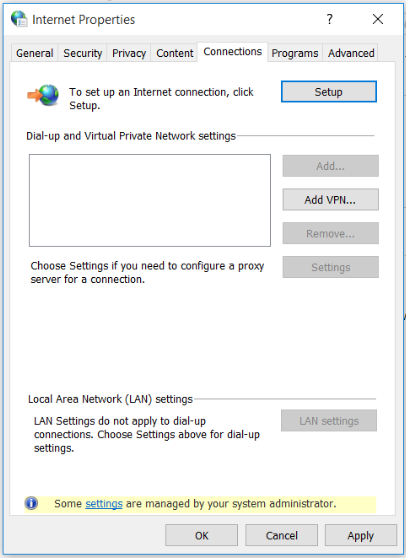
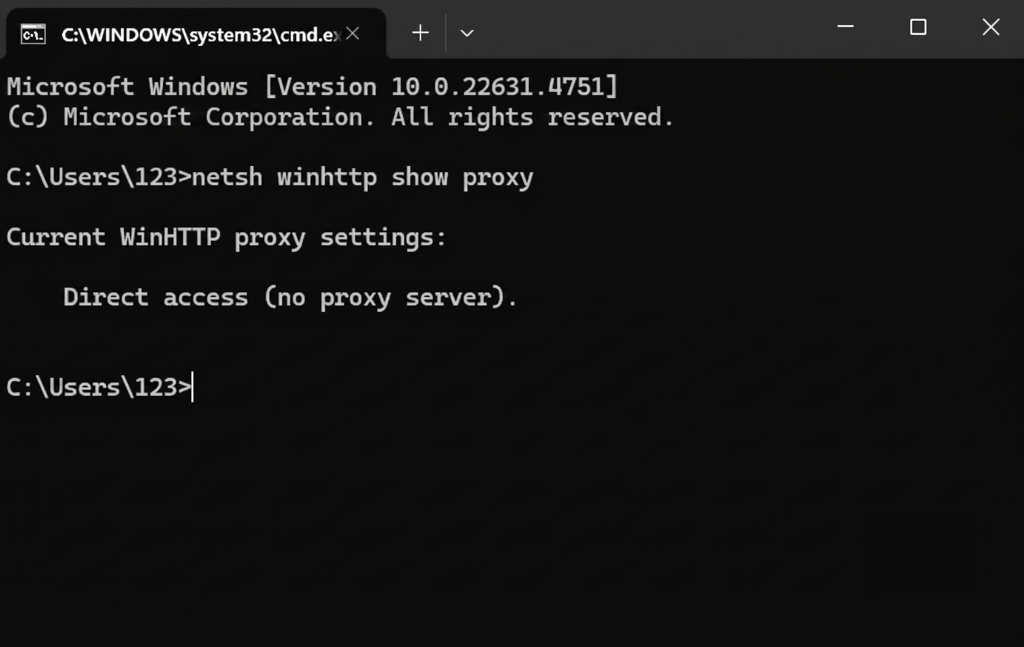
If you have an active proxy on your system, it is easy to find its parameters.
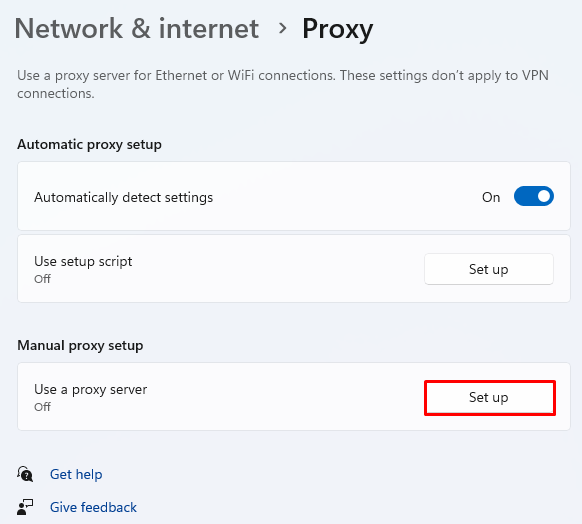
To see local configuration details:
Before adding it to the program, it is important to verify that a proxy is active and that the server is responding to requests.
Some free online tools can do a quick check (like Proxy6, HideMy.name, PortChecker).
You can use the utilities already provided with the operating system.
On Windows (PowerShell): Launch PowerShell and type in the following command: Test-NetConnection -ComputerName 192.168.1.1 -Port 8080 (change the digits to your proxy IP address and port). Make sure to verify the TcpTestSucceeded line: If it's True, the dedicated channel is enabled and is listening for connections.
For macOS / Linux (via Terminal): Use the nc (Netcat) command: nc -zv 192.168.1.1 8080. If it is not working, it will report the following: Connection to ... port [tcp/http] failed.
When you are certain that it is working, you can start using it. Variations of the format used exist from tool to tool.
If you use professional software tailored for marketers and SEO experts (e.g., Screaming Frog, Key Collector, anti-detect browsers), the network settings will be in a separate menu.
In general, there are two choices of input:
For scripts (such as Python data parsing), the proxy port should be set in the request configuration as a key in the dictionary.
If you're using Python, there is an example of the requests library:
import requests


proxies = {
    'http': 'http://192.168.1.1:8080',
    'https': 'http://192.168.1.1:8080',
}


# Now all requests go through the specified port
response = requests.get('https://httpbin.org/ip', proxies=proxies)
print(response.json())
Most modern browsers (Chrome, Edge, Opera) adhere to the system settings by default, so you will need workarounds or special extensions to set them up separately.
The only mainstream browser that allows you to route traffic out of the box, regardless of the OS, is Firefox.
To save your changes, click OK.
All Chrome-based browsers use the Windows or macOS network configurations. Free extensions from the Chrome Web Store avoid this restriction.
The most popular and trusted extensions are ZeroOmega (formerly SwitchyOmega) and SmartProxy.
To do it with ZeroOmega:
If you are interested in other proxy extensions in Chromium, refer to this article for detailed instructions.
Extensions are not enough to prevent regular browsers from leaking your real system via WebRTC or fingerprinting if you need to use intermediaries for marketing or web scraping. Specific anti-detect browsers are used for these tasks (such as AdsPower, Multilogin, Dolphin{anty}).
How it works: It's a single application with multiple profiles.
Isolation: Each profile can be manually configured with a different host, port, username, and password.
Each profile is a stand-alone computer with its own IP address, and won't interfere with your main PC or other tabs.
For regular users, gamers, analysts, and marketers, a proxy port is a digital gateway on the intermediary server for managing internet traffic. It is a means to security and independence when using browsers or special software. If its number is incorrect, the connection fails. So knowing how to find, configure, and use it is important.
We hope this guide has helped you to get your configurations correct. Share the experience with others – leave a comment below.
 Instagram
  Facebook
  TikTok
  Telegram
  YouTube
  Twitter
  Reddit
  LinkedIn
  Runescape
  Dofus
Dofus  Metin2
  Silkroad
  Margonem
  Minecraft
  Lineage 2
  WoW
WoW  Lords Mobile
  Travian
  Steam
Steam  Origin
  Google
  ScrapeBox
  Amazon
  Ebay
Ebay  Shopify
  Etsy
Etsy  Netflix
  Spotify
  Twitch
  Browsing