IPv4
From $0.50 for 1 pc. 38 countries to choose from, rental period from 7 days.
IPv4
From $0.50 for 1 pc. 38 countries to choose from, rental period from 7 days.
IPv4
From $0.50 for 1 pc. 38 countries to choose from, rental period from 7 days.
IPv6
From $0.07 for 1 pc. 14 countries to choose from, rental period from 7 days.
ISP
From $1.35 for 1 pc. 23 countries to choose from, rental period from 7 days.
Mobile
From $14 for 1 pc. 17 countries to choose from, rental period from 2 days.
Resident
From $0.70 for 1 GB. 200+ countries to choose from, rental period from 30 days.
 Armenia
 Australia
 Belgium
 Brazil
 Bulgaria
 Canada
 China
China
 Czech
Czech
 England
 Finland
 France
 Georgia
 Germany
 Hong Kong
 India
India
 Indonesia
 Italy
Italy
 Japan
Japan
 Kazakhstan
 Korea
Korea
 Latvia
 Lithuania
 Malaysia
 Mexico
 Netherlands
 Poland
 Portugal
 Romania
 Russia
 Singapore
 South Africa
 Spain
Spain
 Sweden
 Switzerland
 Thailand
 Turkey
 Ukraine
 USA
USA
Use cases:
Armenia
Australia
Belgium
Brazil
Bulgaria
Canada
China
Czech
England
Finland
France
Georgia
Germany
Hong Kong
India
Indonesia
Italy
Japan
Kazakhstan
Korea
Latvia
Lithuania
Malaysia
Mexico
Netherlands
Poland
Portugal
Romania
Russia
Singapore
South Africa
Spain
Sweden
Switzerland
Thailand
Turkey
Ukraine
USA
Use cases:
Tools:
Company:
About Us:
Armenia
Australia
Belgium
Brazil
Bulgaria
Canada
China
Czech
England
Finland
France
Georgia
Germany
Hong Kong
India
Indonesia
Italy
Japan
Kazakhstan
Korea
Latvia
Lithuania
Malaysia
Mexico
Netherlands
Poland
Portugal
Romania
Russia
Singapore
South Africa
Spain
Sweden
Switzerland
Thailand
Turkey
Ukraine
USA
The MuLogin browser offers the convenience of managing multiple profiles, enabling seamless switching without the need for re-authentication. Its antidetect settings allow the creation of numerous accounts with editable access for others, synchronizing user actions in a way not possible with standard browsers. Additionally, MuLogin's Windows version supports API-driven automation for bulk account registration, making it particularly useful for arbitrage purposes.
Since many users compare different antidetect solutions before choosing the best one, it may be helpful to look at how other browsers handle proxy configuration as well. For example, the Maskfog browser uses a similar logic for assigning IPs to isolated profiles - you can check a detailed guide on Maskfog proxy setup here.
And if you're exploring alternatives to MuLogin altogether, the Surfinite antidetect browser offers a different interface and workflow, which you can review.
Setting up a proxy in the MuLogin antidetect browser is straightforward. Here's a step-by-step guide:
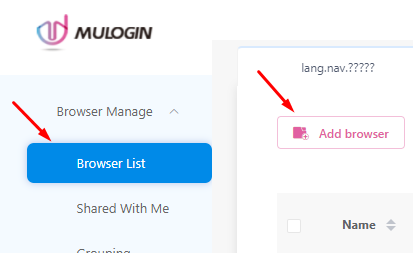
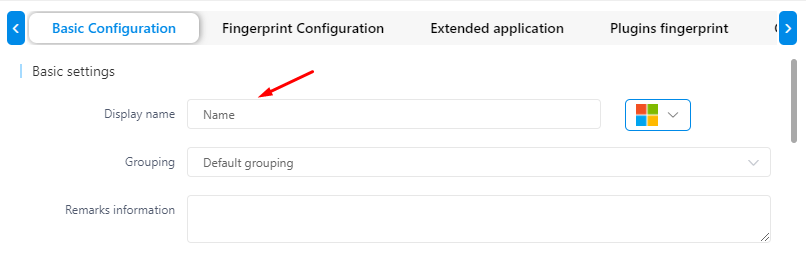
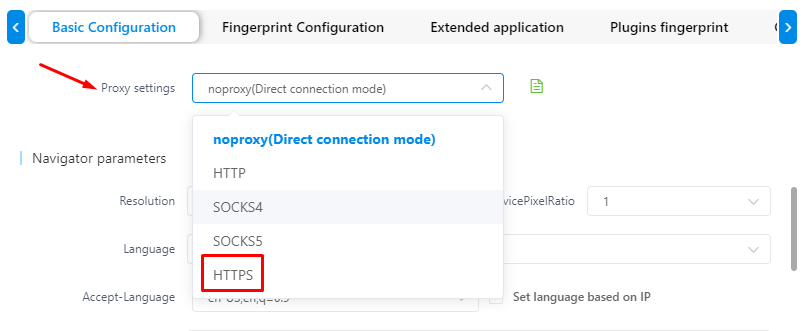
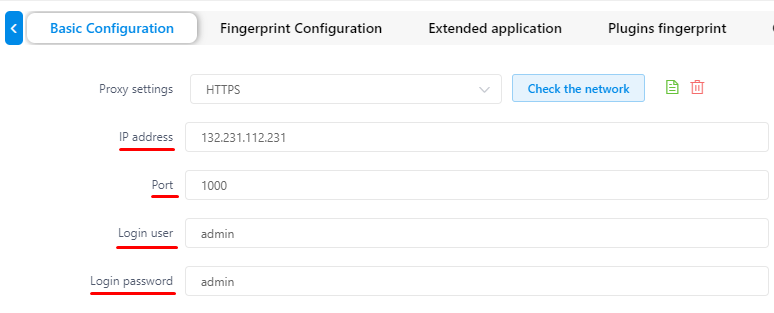
Note: To prevent character entry errors, it’s advisable to copy and paste proxy authorization data rather than typing it manually.

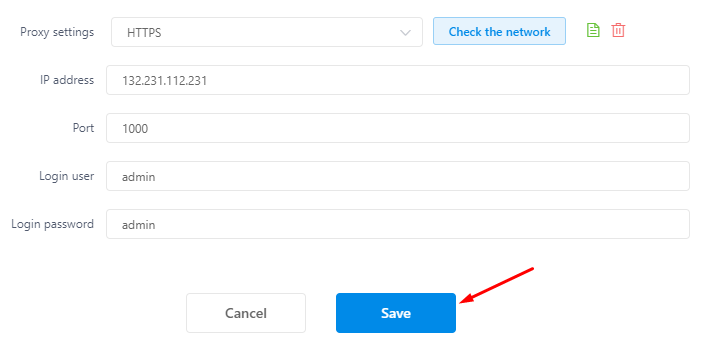
The proxy is now configured in the MuLogin antidetect browser, enhancing the security and anonymity of your accounts.
 Instagram
  Facebook
  TikTok
  Telegram
  YouTube
  Twitter
  Tinder
  Reddit
  LinkedIn
  Runescape
  Dofus
Dofus  Metin2
  Silkroad
  Margonem
  Minecraft
  Lineage 2
  WoW
WoW  Lords Mobile
  Travian
  Steam
Steam  Origin
  Google
  ScrapeBox
  Amazon
  Ebay
Ebay  Shopify
  Etsy
Etsy  Netflix
  Spotify
  Twitch
  Browsing